Home and Community Support

Providing everything from a little help to specialised care, our flexible Home and Community Support services cover home nursing, home assistance and allied health.

Learn more
At Home Support-Salmon-RGB

Support at Home

If you have been assigned a package or want to know more, we’re here to help.

CALL US TODAY

Specialised services

From community education programs to research and digital innovation, we co-design services to support you to live your life, your way.

Learn more
Adjust font size

Bolton Clarke new employee onboarding

Accessing Workday

Congratulations and welcome to Bolton Clarke. This guide will help you access Workday, Bolton Clarke’s HR system, and complete your required onboarding tasks before your start date.

Important: Please complete these tasks as soon as possible to avoid any delays to your commencement.

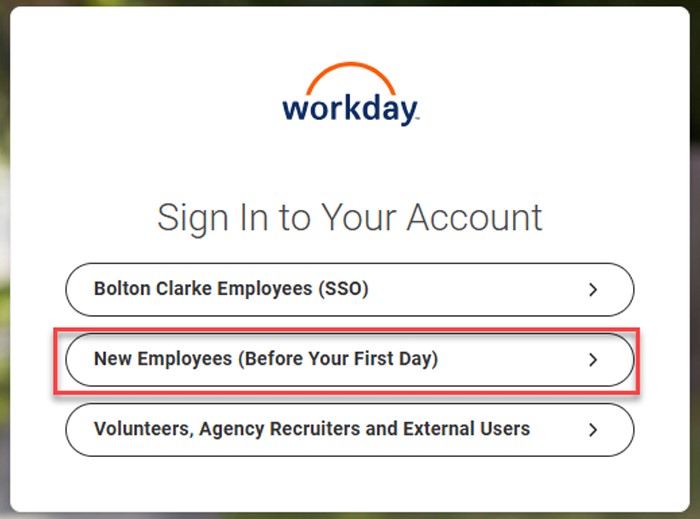
  1. As a new starter, you will receive an email with a link to Workday. Select the link to take you to the Workday Sign-in screen.
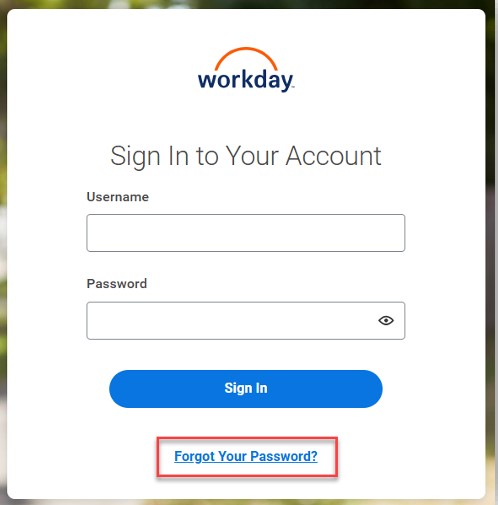
  2. On the sign-in screen, select “New employees (Before your first day)” and then click “Forgot your password?”
    Sign in to your account   Forgot your password
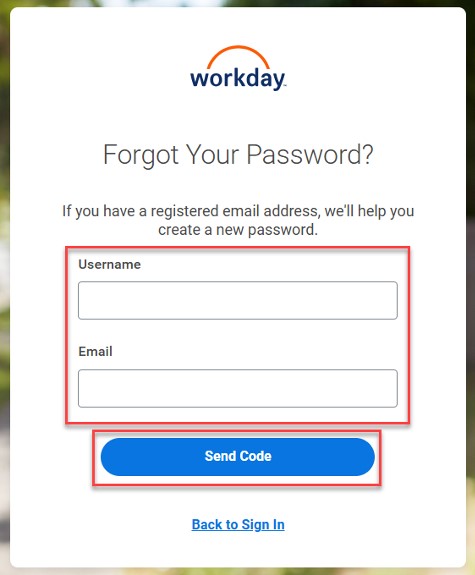
  3. In the new window, enter your personal email address in both the username and email fields. Then select “send code”.
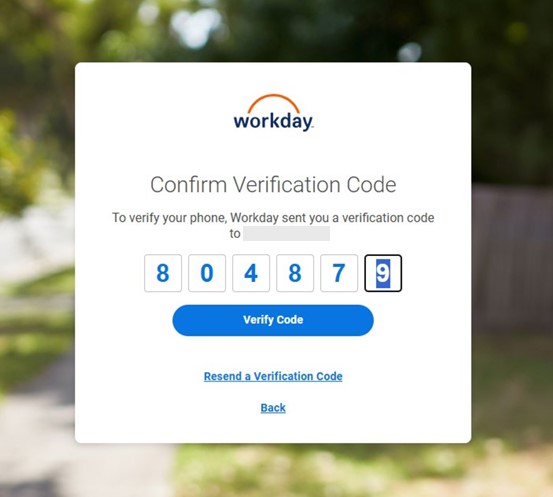
  4. Check your email account used in Step 3 for a code. Return to the Workday sign-in screen and enter the code.
    Return to sign-in screen   Enter code
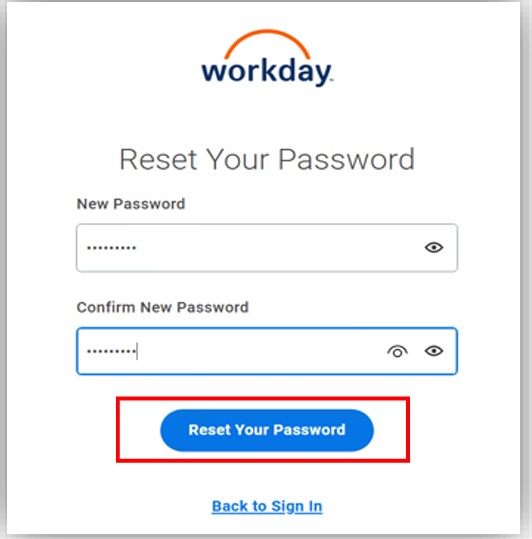
  5. You will be prompted to create a new password. Enter the password of your choosing, confirm the same password and then click ‘Reset Your Password’.
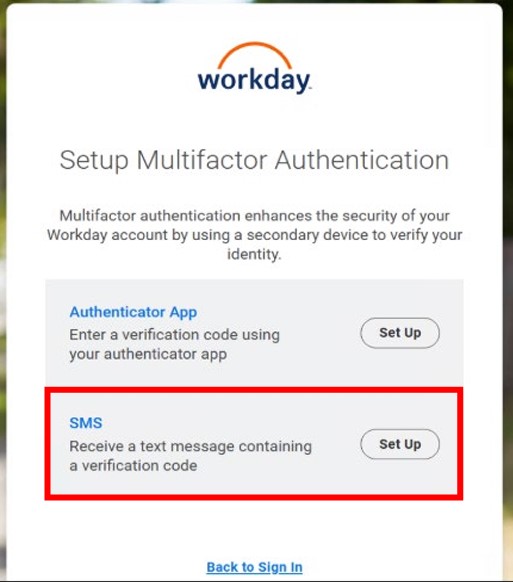
  6. You will be asked to set up Multi-factor Authentication (MFA). Select the SMS set up option, select your phone number and press select.
  7. You will receive an SMS with the code. Enter the code and select verify code. Then select Finish.
    Reset your password   Set up MFA


Mandatory onboarding activities 

You are now required to complete mandatory onboarding activities such as providing your Tax File number, Superannuation details, bank account details and reviewing/adding your personal information.

Please refer to the instructions below for a step-by-step guide on how to find and complete these tasks.


Pre-hire tasks

1. Where to access on the Workday home page

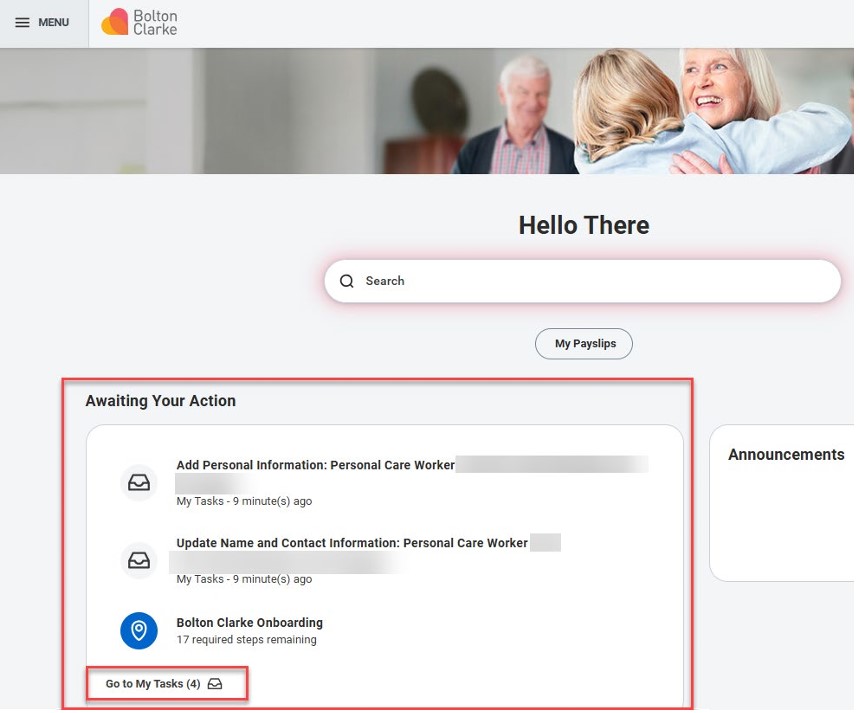
From the workday Home page, your Onboarding tasks will appear under Awaiting your action.

Select Go to my tasks to see the list of all required tasks.

Awaiting your action

2. Add personal information
  1. Select the Add Personal Information task from your Workday inbox.
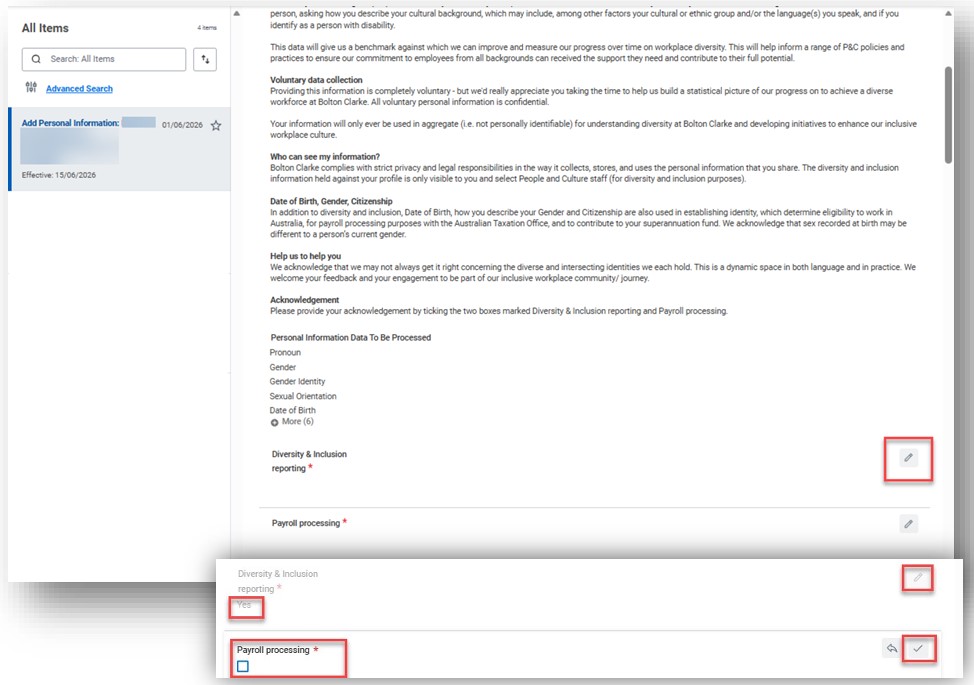
  2. Please take the time to read the active consent information within the task. Then scroll down to the first pencil icon and select the pencil (for Diversity and Inclusion reporting), tick the blank box and then select the tick icon. Repeat this process for Payroll Processing.
    Personal information
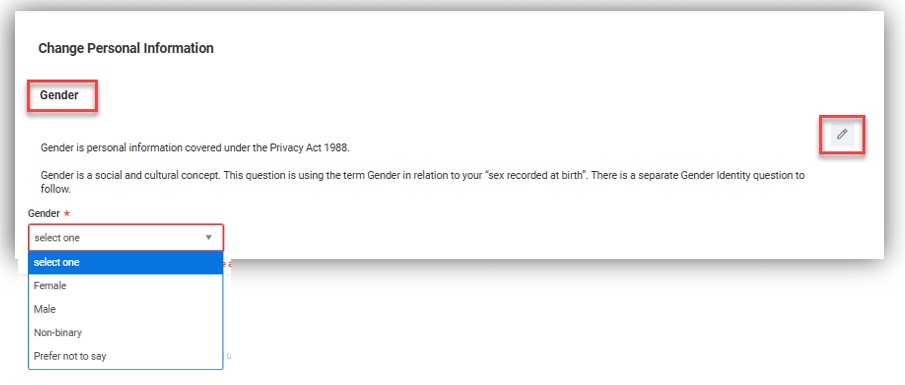
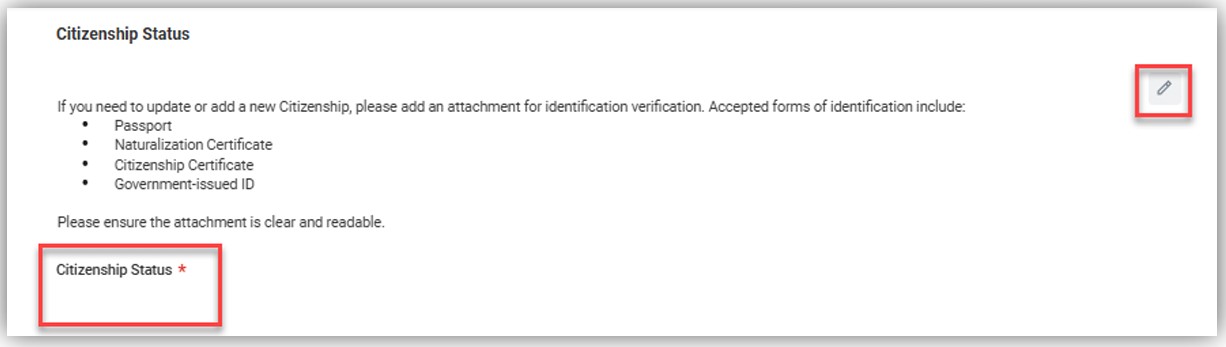
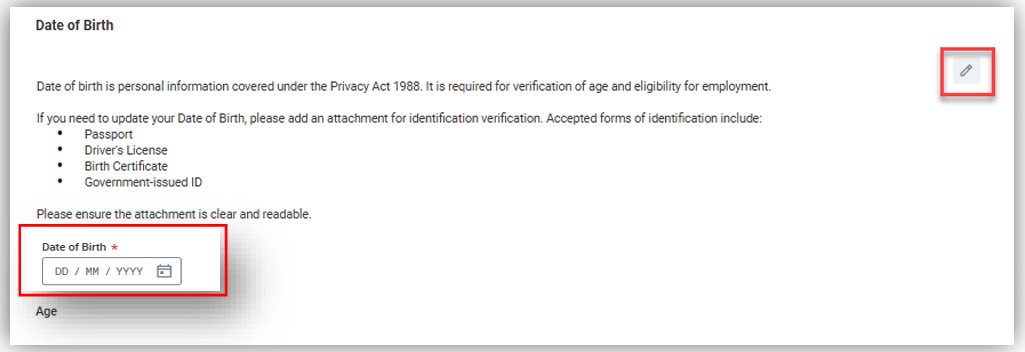
  3. You will then be required to add Gender, Date of Birth and Citizenship status. All other fields are optional and do not need to be entered unless you would like to provide this information.
    Gender
    In the citizenship status drop down, select By Country and choose the relevant country. Then select the tick icon to save your changes. 
    Citizenship
    Enter your date of birth.
    DOB
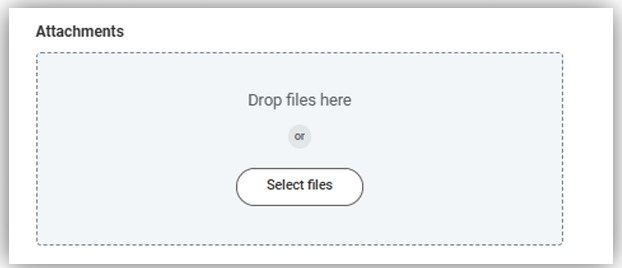
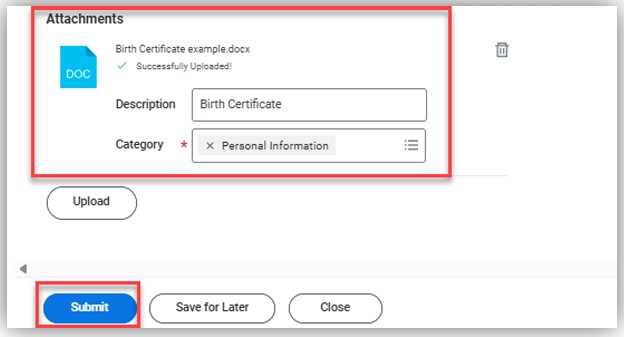
  4. Once you have entered all those details, you will be required to upload a passport or birth certificate to confirm your citizenship. Press the Select files and upload the relevant document. Add the relevant description (e.g. passport or birth certificate) and select the category of Personal information.
    Drop files Attachments
  5. Then select submit.
3. Update name and contact information
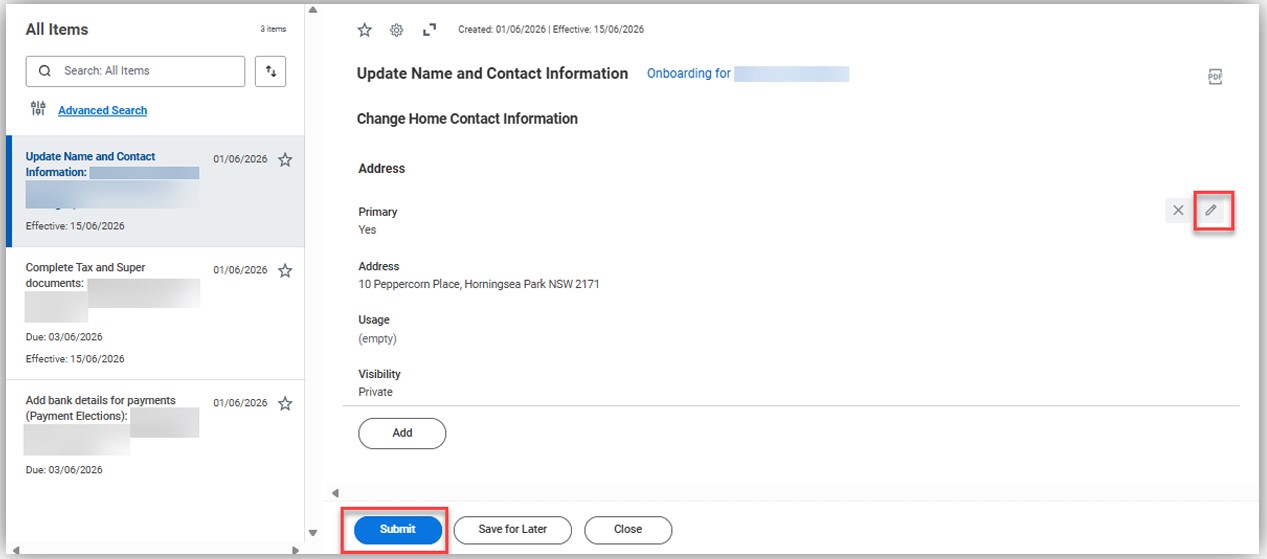
  1. Complete the Update Name and contact information 
    In most cases, the information should be filled in on your behalf. Review and if nothing is required to be changed, select submit.
    If you do need to change details, select the pencil icon and update the relevant information as necessary and then select submit. 
    Contact information
4. Complete the tax and super documents
  1. Select the Complete Tax and Super Documents task.
  2. Complete the TFN Declaration Form by selecting the linked document and downloading the form. Fill in the required information and save to your computer/device.
    Then press Select files and upload the saved document.
    Tax and super documents
    TFN declaration form
5. Add your bank details for payment
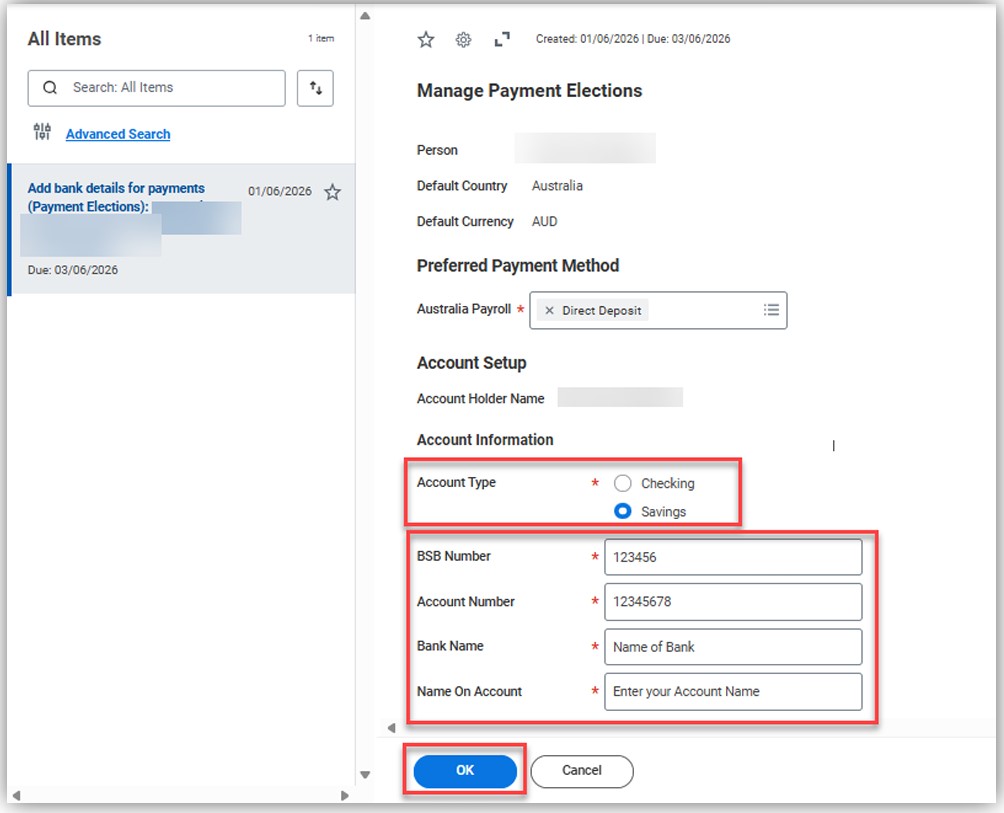
  1. Select the Add Bank details for Payments task
  2. Filling in the required details:
    • Select the relevant account type
    • Enter BSB number
    • Enter Account number
    • Enter Bank name
    • Enter Name on account
  3. Then select OK.
    Payment

All required tasks are now compete. Thank you. 

Troubleshooting
  • Ensure Username and Email are both your personal email address used to upload documentation before clicking Forgot Your Password.
  • If you attempt to log in too many times and become locked out of your account, please wait 30 minutes before attempting to log back in.